Print the reports
Two reports are laid out to print, or to save as PDF from the browser's print dialog.
1. The flight report
Press Flight report on the flight's page. It holds the flight's figures, a map of where the frames were taken with the findings numbered, the problems, the datasets, and the findings with their frames. Type a title, the author and notes on the page: they are saved as you type.
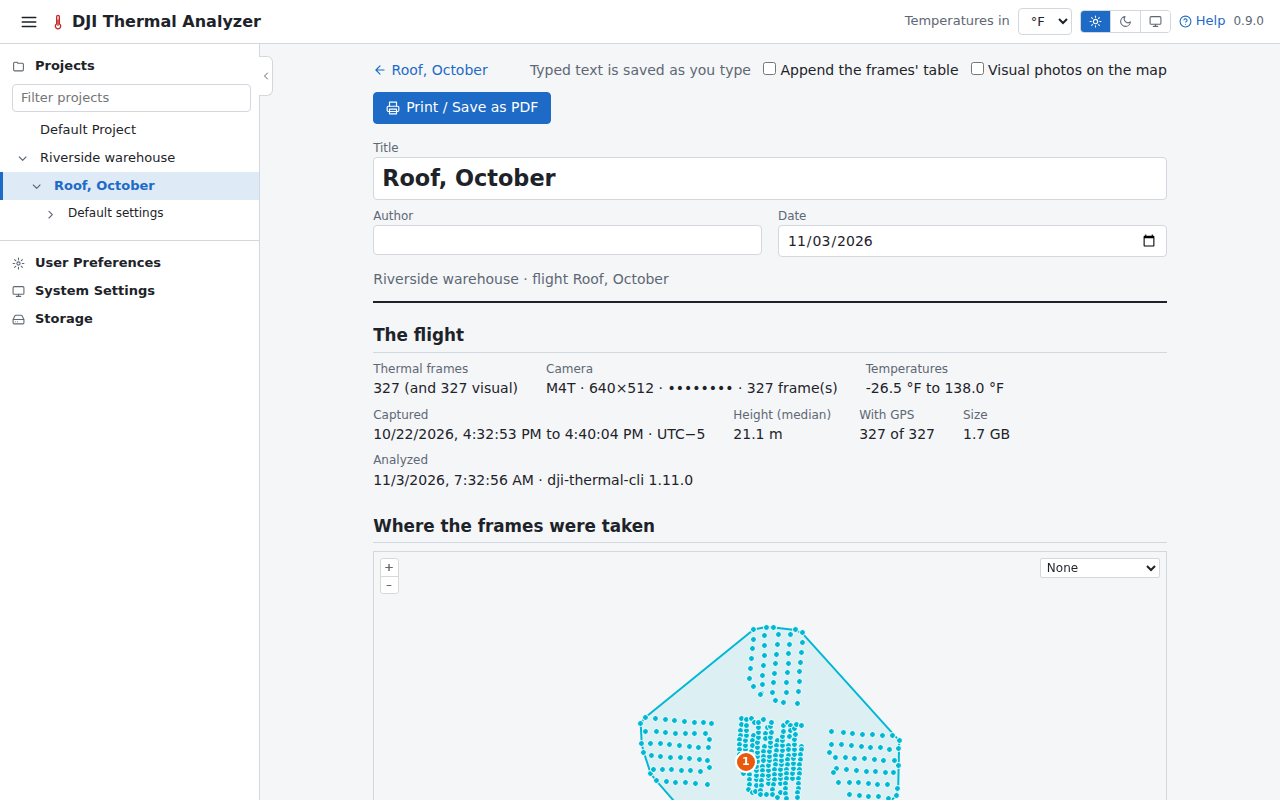
Press Print / Save as PDF, and choose the paper size, or Save as PDF as the printer. The report always prints light, without the app's header and controls.
2. The mosaic report
In the viewer, set the mosaic as you want it shown (the tab, the palette, the range), then press Mosaic report. It shows the mosaic as the viewer did, with the measurements and findings numbered, the colour scale, a scale bar and north, then each measurement and finding in detail.
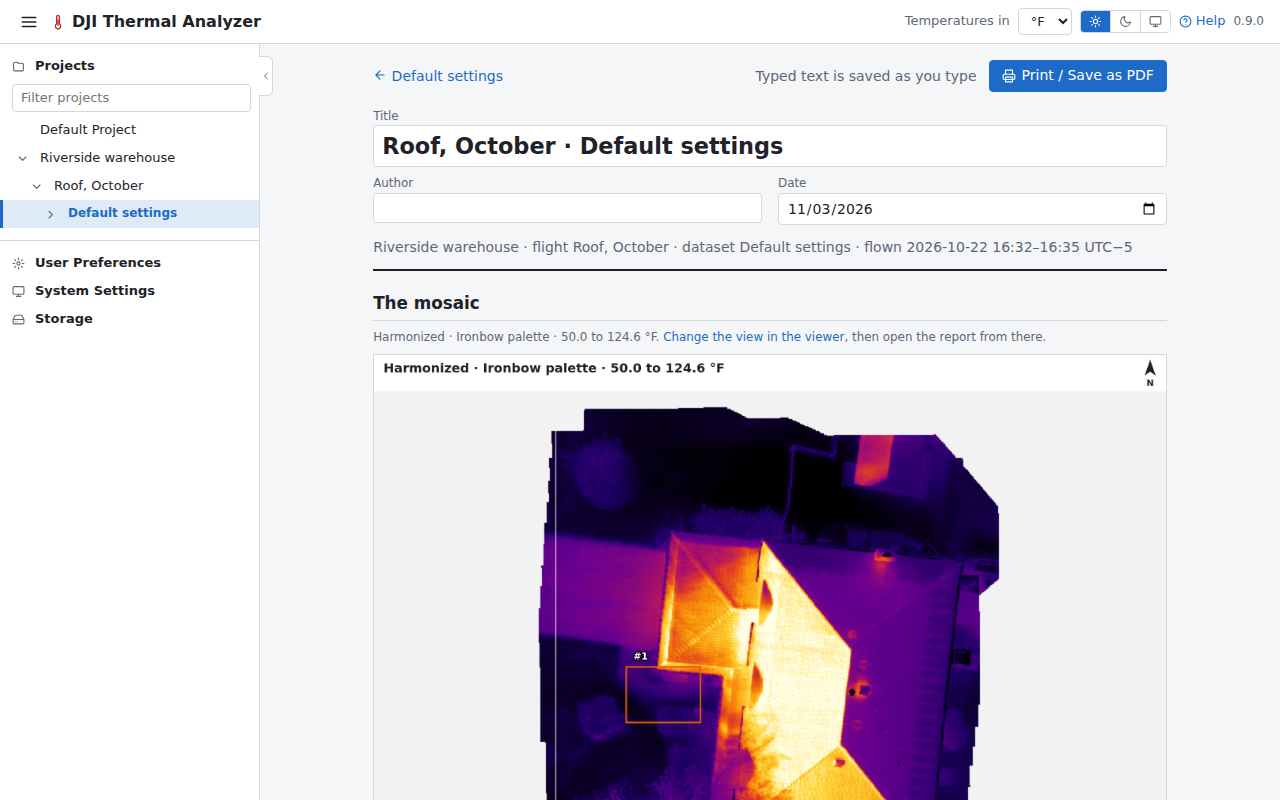
See Reports.
Next: export.