Reports
The two reports are pages laid out to print, or to save as PDF from the browser's print dialog, on A4 or Letter. They always print light, without the app's header and controls.
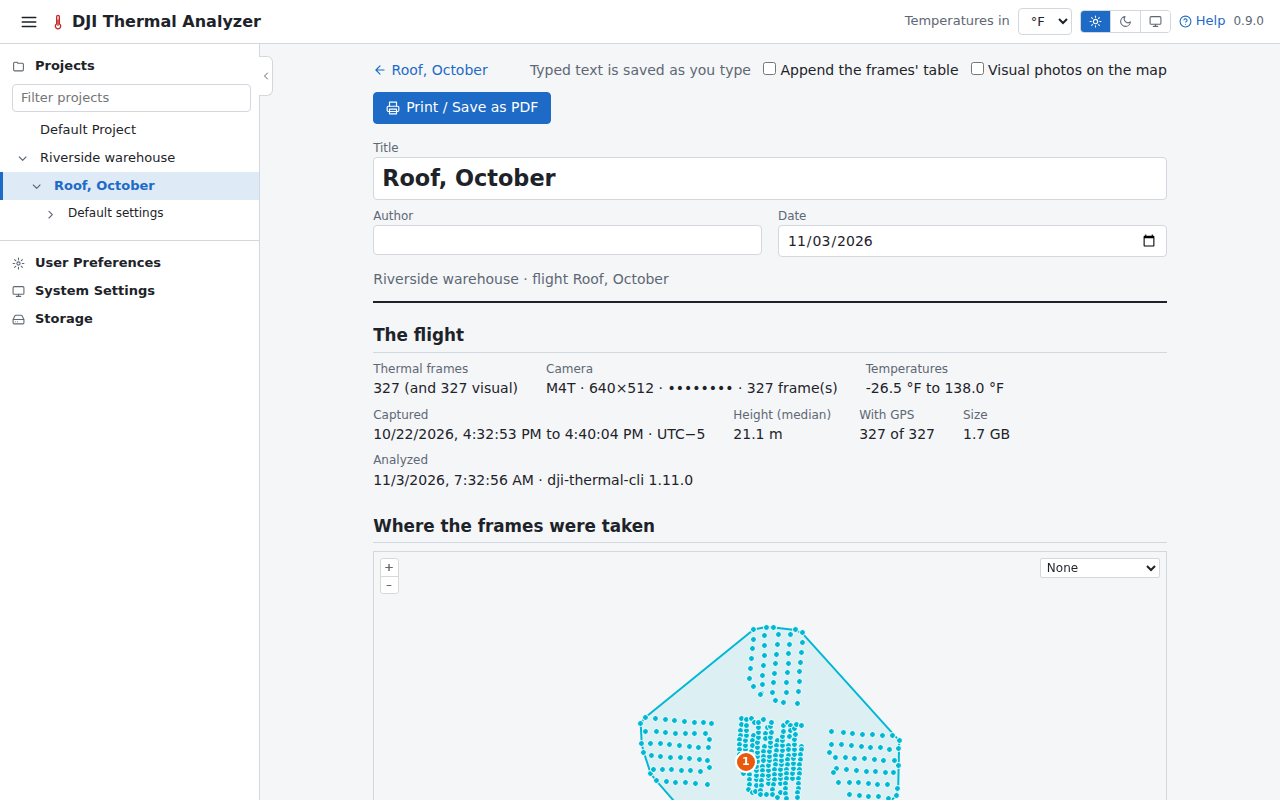
Flight report
Opened with the flight page's Flight report button, it holds:
- the flight's figures;
- a map of where its frames were taken, with its findings and saved video frames numbered (V1, V2…), and the visual photos when they are put on it (always, on a flight with no thermal images);
- the coverage, and the problems found;
- the frames' settings and temperatures summed up, and the datasets;
- the findings, with thumbnails of their kept frames, and the video frames saved;
- a table of every frame, when it is appended.
The title, author, date and notes are typed on the page and saved with the flight as typing pauses (the bar above says so: Saving…, then Saved). The last author typed fills in new reports.
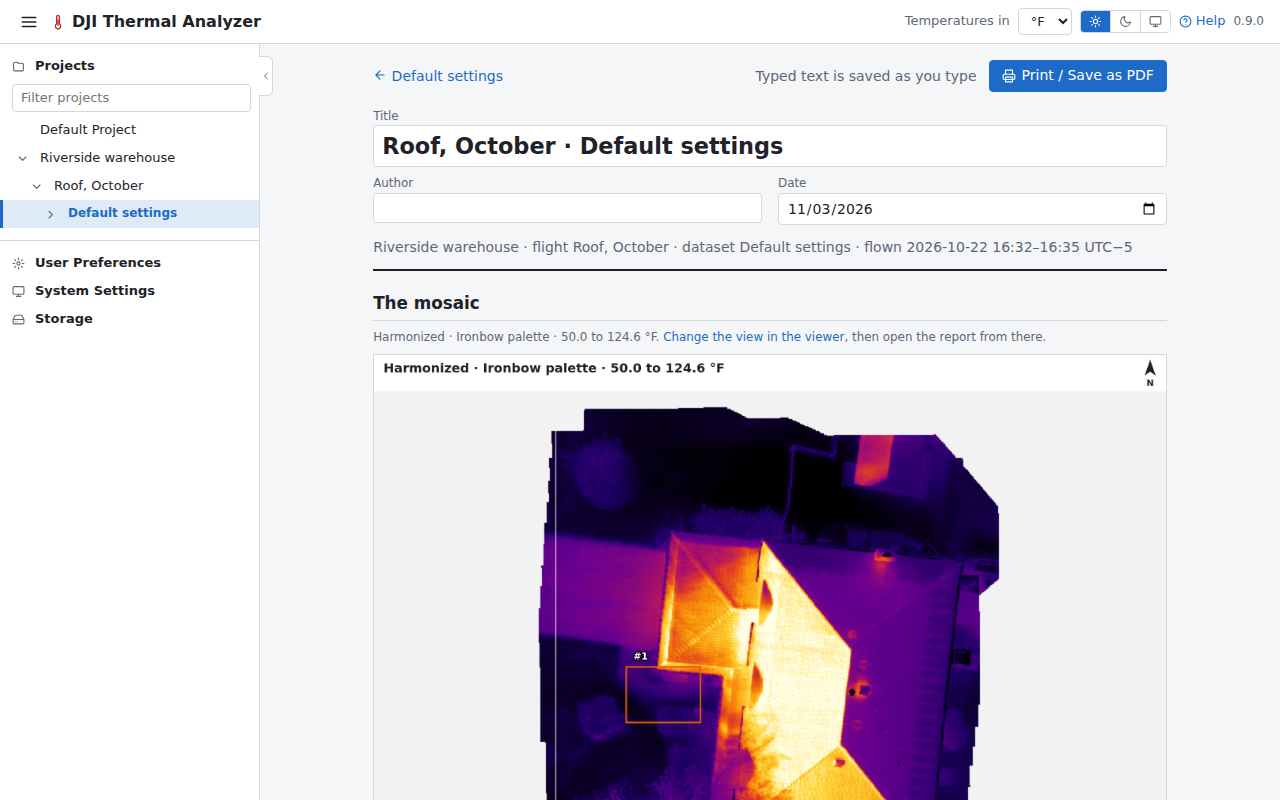
Mosaic report
Opened with Mosaic report in the viewer's header, it shows the mosaic as the viewer showed it when the button was pressed (that view is saved with the report), with:
- the saved measurements and the flight's findings drawn and numbered, the colour scale, a scale bar and north;
- each measurement, with a close-up on its mosaic or frame, its figures, profile and histogram, and a comment; one can be left out;
- the findings on the mosaic, with their kept frames;
- the dataset's settings, and how the mosaic was made (and when its heights came from a WebODM DSM).
A measurement's comment is also shown in the viewer's list and exported in the CSV and GeoJSON.
The mosaic report of a flight of visual images only's dataset shows its visual mosaic as it is, with no colour scale, each measurement's close-up with its length, or area and perimeter, its findings, and how the mosaic was laid out.
The mosaic report of an imported dataset says where its orthophoto came from instead of settings: the WebODM project and task, when the task was made, from how many images and how long WebODM took (for one imported since this was recorded), and its DSM, or the files' names.
Printing
Print / Save as PDF opens the browser's print dialog, where the paper size is chosen and "Save as PDF" makes the file.